 The Simplest Manual Counter
The Simplest Manual Counter
Open source software to count any items the simplest and easiest way — with the keyboard or the mouse on images.
User's Guide Installation's GuideOpen source software to count any items the simplest and easiest way — with the keyboard or the mouse on images.
User's Guide Installation's GuideThe Simplest Manual Counter is an open source software designed to count any items in the simplest and easiest way possible, using either the keyboard or the mouse on images.
Assign a name, a key (letter or number) and an optional multiplying factor to each counter.
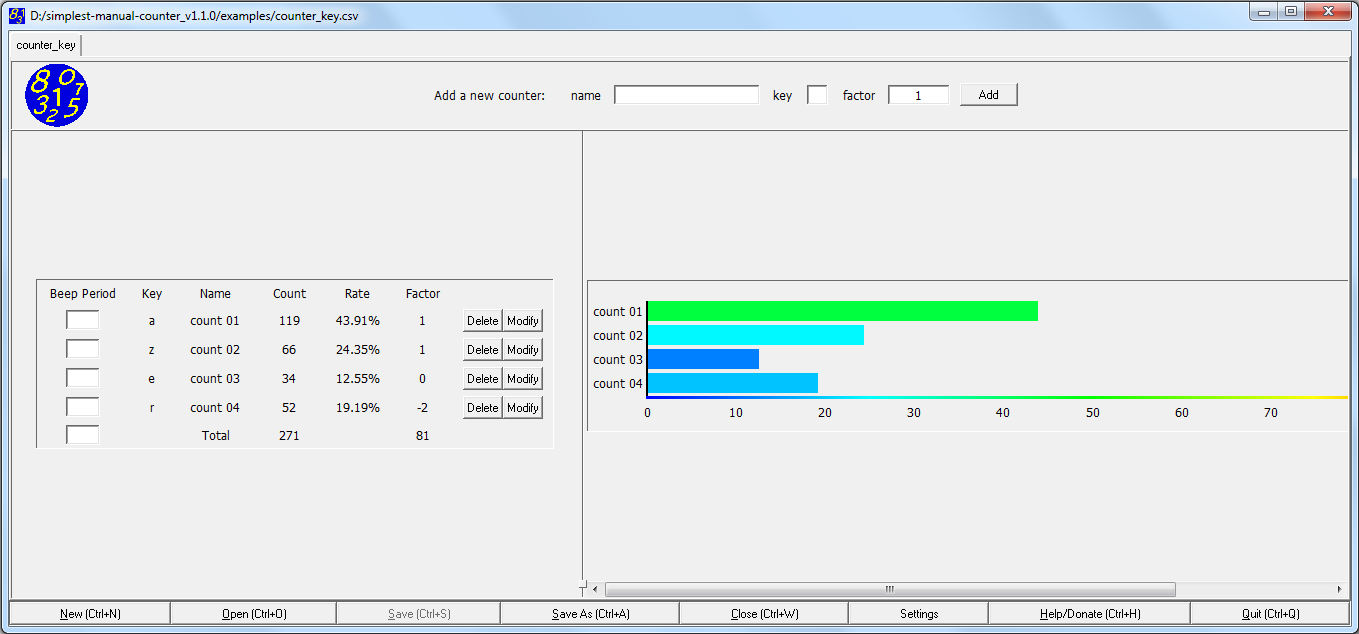
Define a name, a shape, a color and an optional multiplying factor — then click on the image to count.
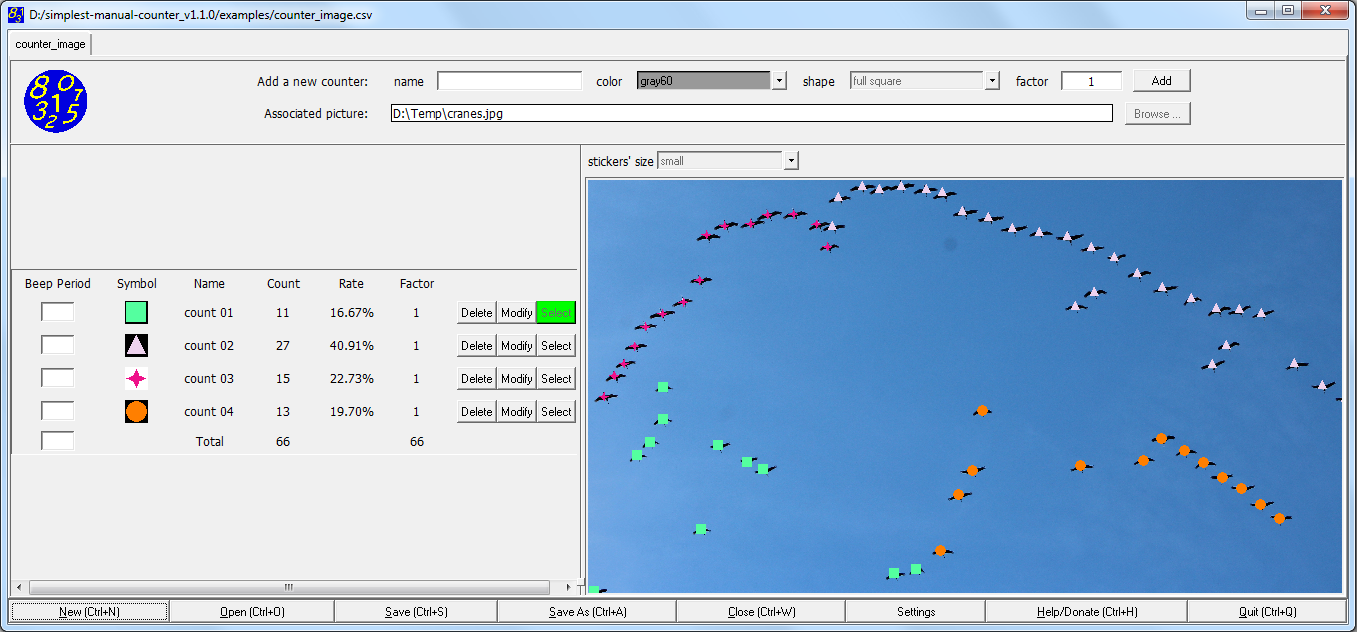
All counters are gathered in independent worksheets. Manage multiple counting sessions easily.
Follow the Installation Guide Step 1 only. Then double-click on simplest-manual-counter.exe in the exe directory.
Be patient! The software takes a dozen of seconds or more to display at the very first time. This is normal behavior.
Follow the Installation Guide Step 1 only. Then double-click on simplest-manual-counter.x in the exe directory.
Follow the full Installation Guide. Then run the starter script run-src.cmd (Windows) or run-src.sh (Linux) from the root of the installation directory.
Click the New button or press Ctrl+N. A new worksheet appears. Select the type of counter between Keyboard and Image. All worksheets are independent.
Click the Browse... button at the end of the "Associated picture" line. Select a .jpg, .png or .bmp file.
Click the Open button or press Ctrl+O. Select a .csv file.
Enter the name, the associated key (letter or number) and optionally the factor. Press Enter or click Add.
You can create a counter at any time. The software warns of any uniqueness conflicts (same name or same key).
Enter the name, select the color and shape, and optionally the factor. Press Enter or click Add.
Counters are recorded in a temporary file after each period set in the Settings menu. After a crash, the application will offer to open the temporary file.
Tab — Jump between fields and buttons.
Esc — Activate the keys for Keyboard counting when the cursor is in a text field.
Ctrl+W — Close the active worksheet (asks to save if needed).
Ctrl+Q — Quit the software (asks to save each worksheet if needed).
The installation follows three steps:
Download the last system-compatible package (Windows 32/64 bits or Linux 64 bits) and extract all its files into a new directory (e.g. simplest_manual_counter).
Only needed to run from source code.
Run hasPerl.cmd (Windows) or hasPerl.sh (Linux) from the install sub-directory.
sudo apt install perl, etc.).Run install_Perl_modules.cmd (Windows) or install_Perl_modules.sh (Linux) from the install sub-directory.
Success messages will confirm the installation of Perl/Tk and Perl/Digest::SHA1.
For new features, support, bugs or complementary information, visit the project page on SourceForge
or contact the author :
david_balogh the-simplest-manual-counter.net